Get Access
To access the IMTM HPC cluster, you must first submit an official account request through the designated process. Access to the cluster is strictly limited to authorized users, such as affiliated researchers, students, or collaborators, whose requests have been reviewed and approved by the Head of the HPC Facility or the Institute Director.
All users are expected to comply with institutional policies, security guidelines, and usage terms related to the HPC environment.
Request Access
To request access contact the cluster administrators at jan.lostak@upol.cz or branislav.siska@upol.cz and include your Full name, Institution, Project or research purpose and your SSH public key.
Your access request will be reviewed by the Head of the HPC Facility or the Institute Director, who will determine approval based on institutional policies and resource availability.
Generating SSH Key Pair
If you already have an existing key pair, you can skip this section and proceed directly to the connection instructions.
Linux / macOS
To generate an SSH key pair you can use build in OpenSSH client. Open terminal and enter command, as shown below.
Windows
To generate an SSH key pair, open PuTTYgen, select the key type (e.g., RSA), set the desired number of bits (e.g., 4096), and click Generate while moving your mouse around to create randomness. After the key is generated, enter a key passphrase if desired, then click Save private key to store your private key and Save public key to save the public key, or copy it directly from the text box.
Warning
Always use a strong, unique passphrase to keep your private key secure, as this adds an essential layer of protection in case the key file is lost, stolen, or accessed by unauthorized users.
Connecting to the Cluster
To connect to the cluster you will need ssh client. For linux/mac you can use build in OpenSSH client and for windows you can download PuTTY client.
Linux / macOS
Open terminal and login using following command with your username, login address and your private key id_rsa file:
Windows
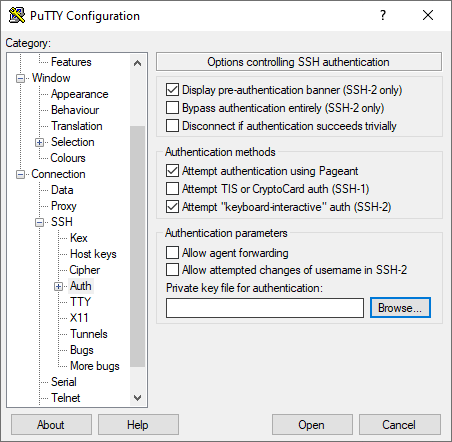
To log in to the cluster from a Windows system, you first need to download and install the PuTTY SSH client. Once installed, launch PuTTY and import your private key file, as demonstrated in the image below.
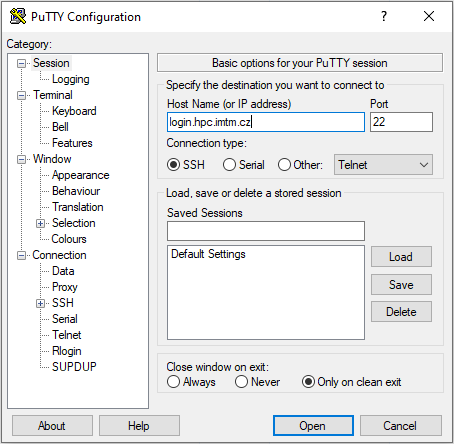
After successfully importing your private key, open PuTTY and configure the connection settings to access the cluster, as shown in the image below.